
Plugin creator
The plugin creator builds a small add-on (a plugin) for you. You describe a task you repeat in plain words, Alisio writes the plugin, checks it automatically and you decide when to install it. You do not need to program. It is in the web UI and the desktop app: Plugins in the sidebar, then Plugin creator. Developers: the reference lists the generated layout, the checks and the HTTP routes.
Open the creator
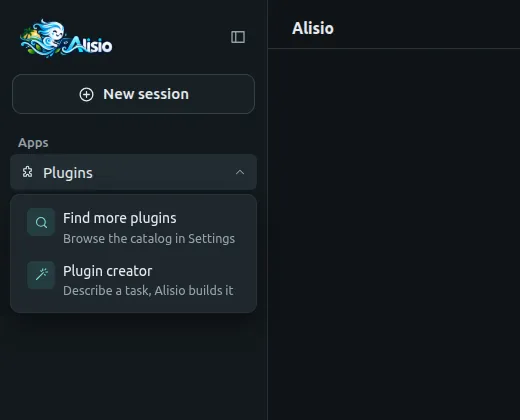
At the bottom of Apps, the Plugins menu has two entries: Find more plugins, which opens Settings → Plugins → Plugin catalog, and Plugin creator, which opens a full page with your plugins on the left and the new-request panel on the right.
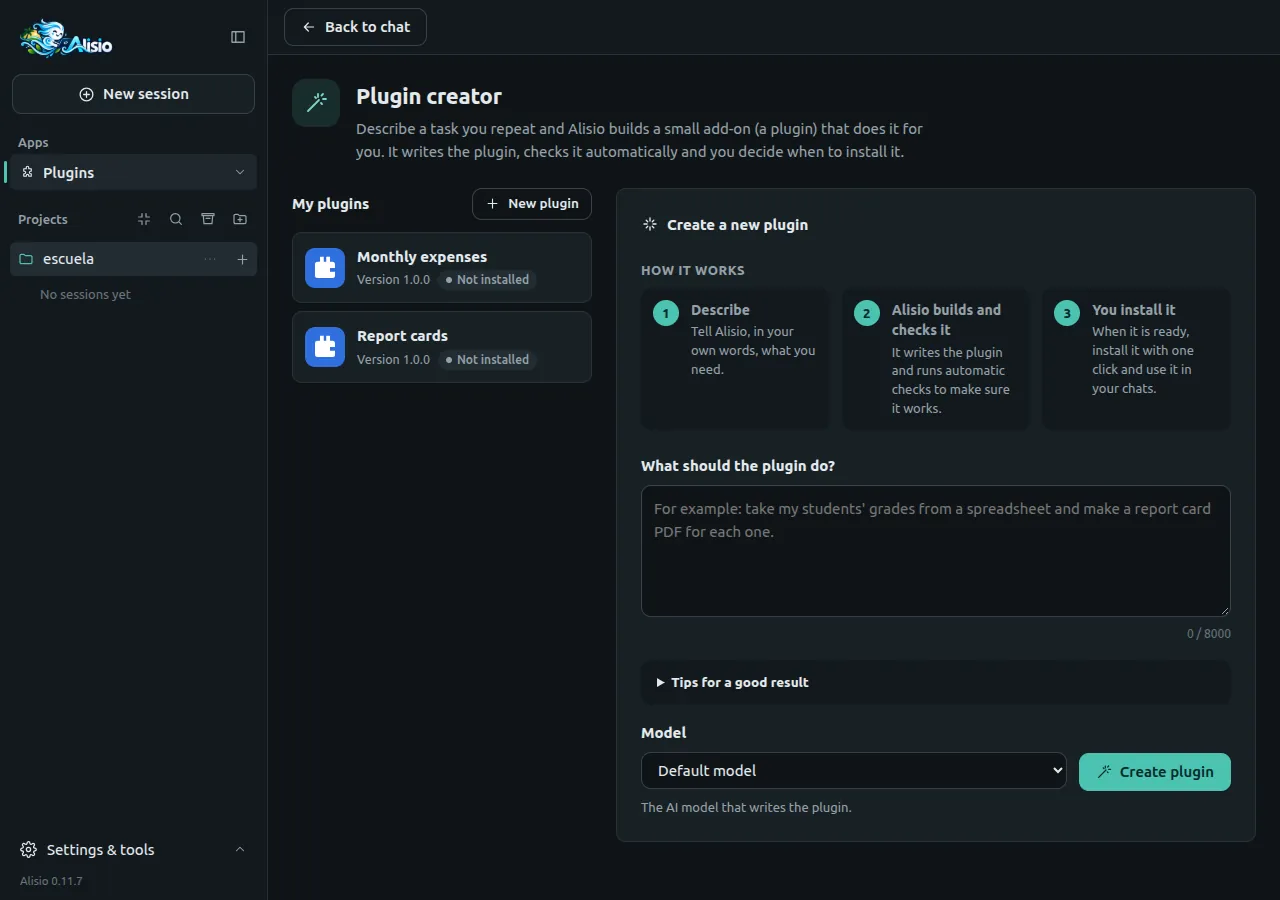
Create a plugin, step by step
- Write what the plugin should do in What should the plugin do? Say what goes in (a file, a table, some text) and what should come out; one real example helps. Start small: you can ask for changes later.
- Choose the Model that writes the plugin (any model you have configured; the default one works) and press Create plugin.
- Watch the progress: Plan, Write checks, Write the plugin, Run checks and Package, with the time elapsed and what Alisio is doing. You can answer its questions, press Stop or, if something fails, Try again.
- When the plugin is ready, its page shows Package ready.
Approvals while it builds
To check a plugin, Alisio has to run it on your computer. The creator works in the ask permission mode, so you see an Alisio needs your permission card before each run: Allow it if you trust the request, Deny stops that step. The card appears only while the creator page is open; if you leave the page, the build waits for you. Running a plugin uses your user's permissions and it is not a sandbox.
A screen in the Apps menu
Ask for "its own screen", "a window", "a page" or "a section in the menu" and the plugin gets a plugin app: an entry in the sidebar Apps menu that opens a full page (see Plugin apps). Alisio's plan records that the request needs a screen, and the build fails with "You asked for its own screen in the Apps menu, but it does not have one yet" when the plugin does not add one. Right after Install & enable, Update, an uninstall, or turning the plugin on or off, the Apps menu updates without reloading the page.
Your plugin
Open a plugin in My plugins to see its status (Not installed, Installed or Update available) and these buttons:
| Button | What it does |
|---|---|
| Build and check | Validates the plugin, runs its automatic checks and packages it |
| Install and enable / Update | Installs it as a private (local) plugin and turns it on; after you change it, Update installs the new version |
| Ask for changes | Describe what should change; Alisio edits the plugin and raises its version |
| Download | Saves the plugin as a .tgz file |
| Share | Shows how to share it (see below) |
| Delete | Removes the plugin from the creator, optionally uninstalling it too |
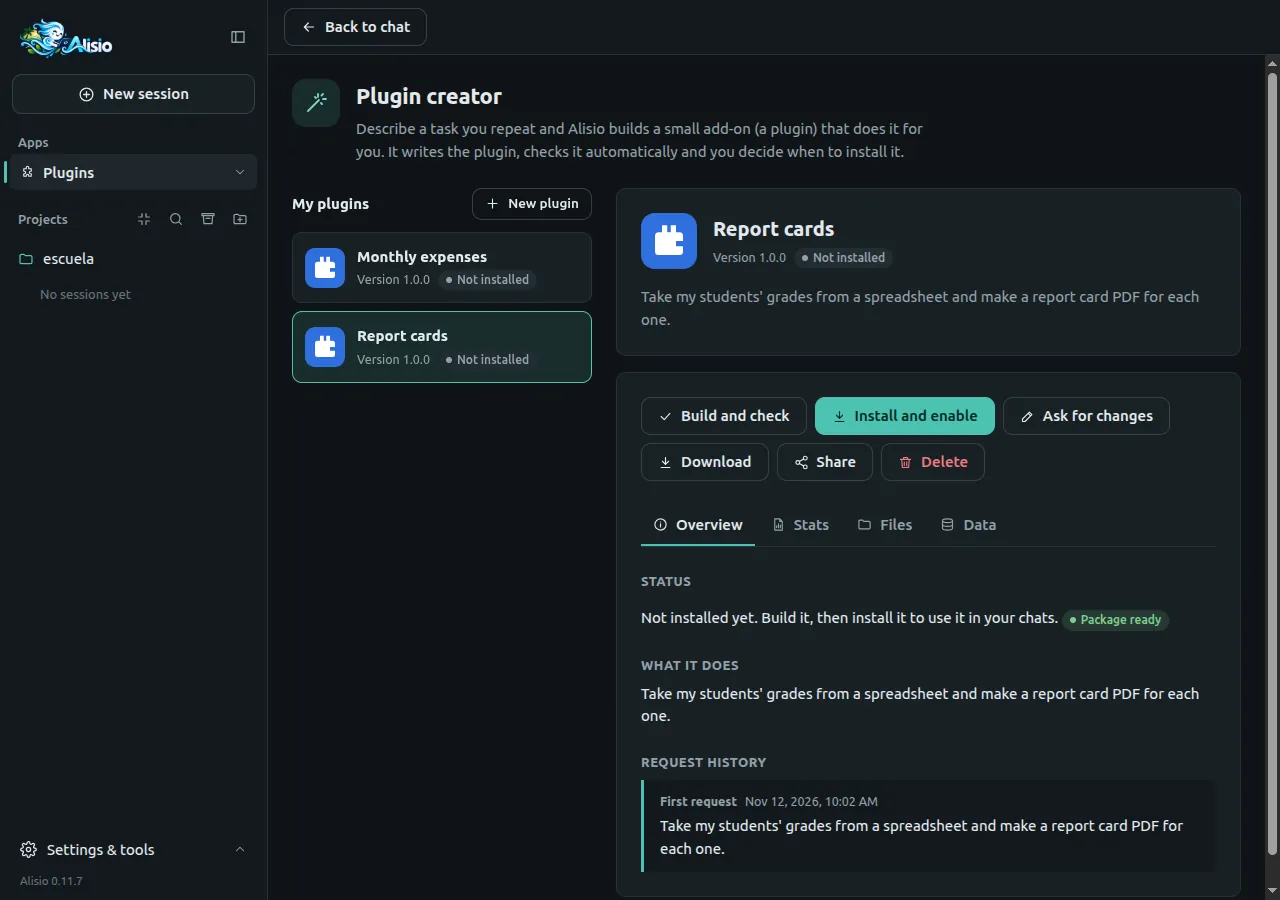
The tabs show the Overview (status, what it does, request history), Stats (time to create, last build, files, size, checks passed or failed), Files (a read-only view of every file) and Data. Every plugin gets a placeholder icon and cover with its name; Alisio may replace them with a custom drawing.
Install, update and modify
Install and enable always builds the plugin again first, so what is installed is exactly what you see. Installing asks for your confirmation, because a plugin runs on your computer with your permissions. If the plugin was turned off in the current project, it is turned on. Some updates need a restart of Alisio to start running; the message says so.
To change a plugin, press Ask for changes, describe the change and send it. Alisio builds the new version; when the page shows Update available, press Update. Your plugin data is kept.
See the data it keeps
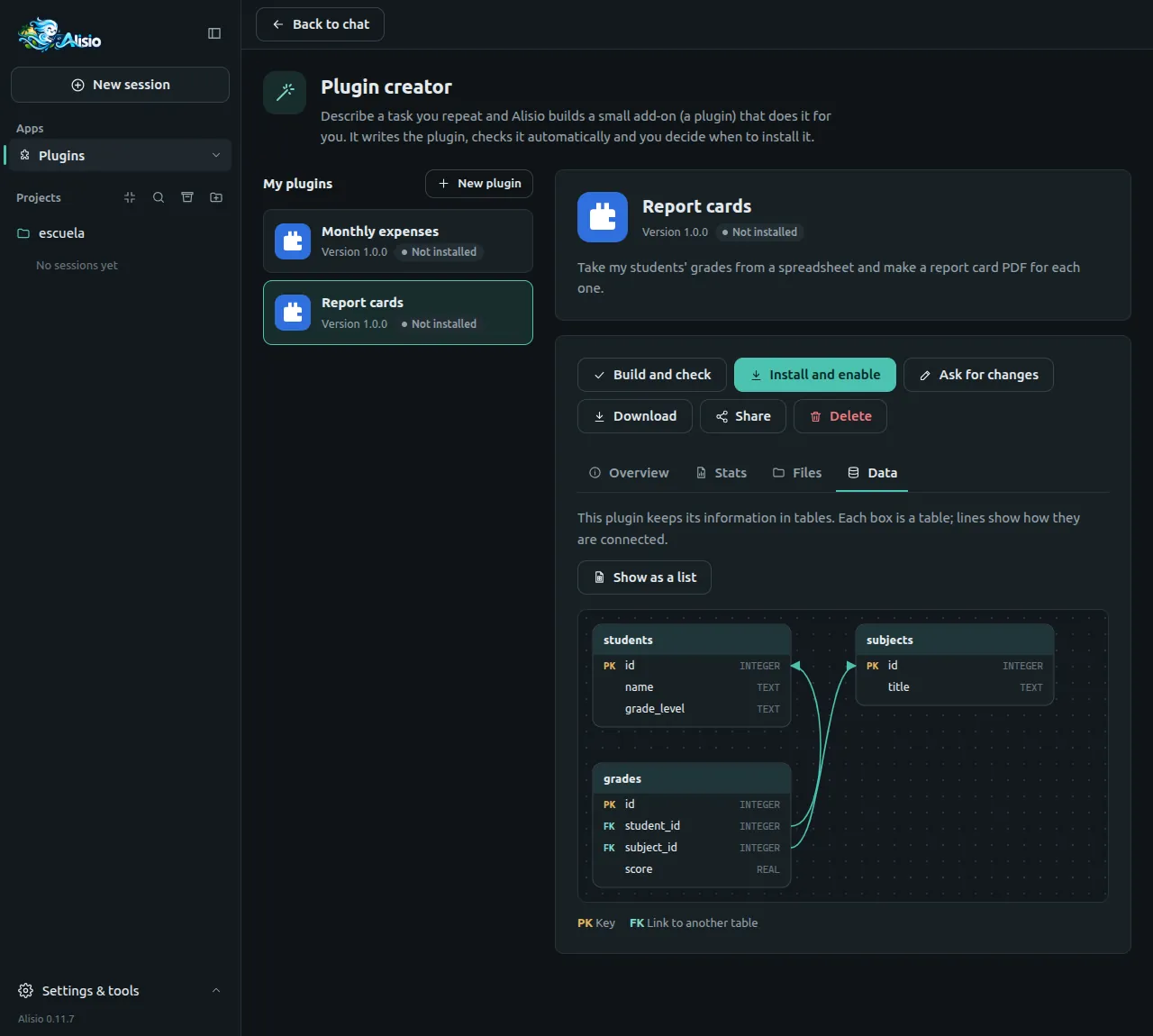
If the plugin stores information in tables, Data draws a diagram: each box is a table, with its key columns (PK) and links to other tables (FK). Show as a list gives the same information as a table of columns. The diagram is read from the plugin's code, so it is a guide, not a guarantee.
Delete a plugin
Delete asks for confirmation. It removes the plugin's files and history from the creator. Tick Also uninstall it from Alisio to remove the installed plugin too; leave it unticked to keep using it, it just will not appear in the creator any more. This cannot be undone.
Download and install from a file
Download saves the .tgz package. Anyone can install it in Alisio from Settings → Plugins → Install from file, on any computer. See Plugin catalog, install and updates.
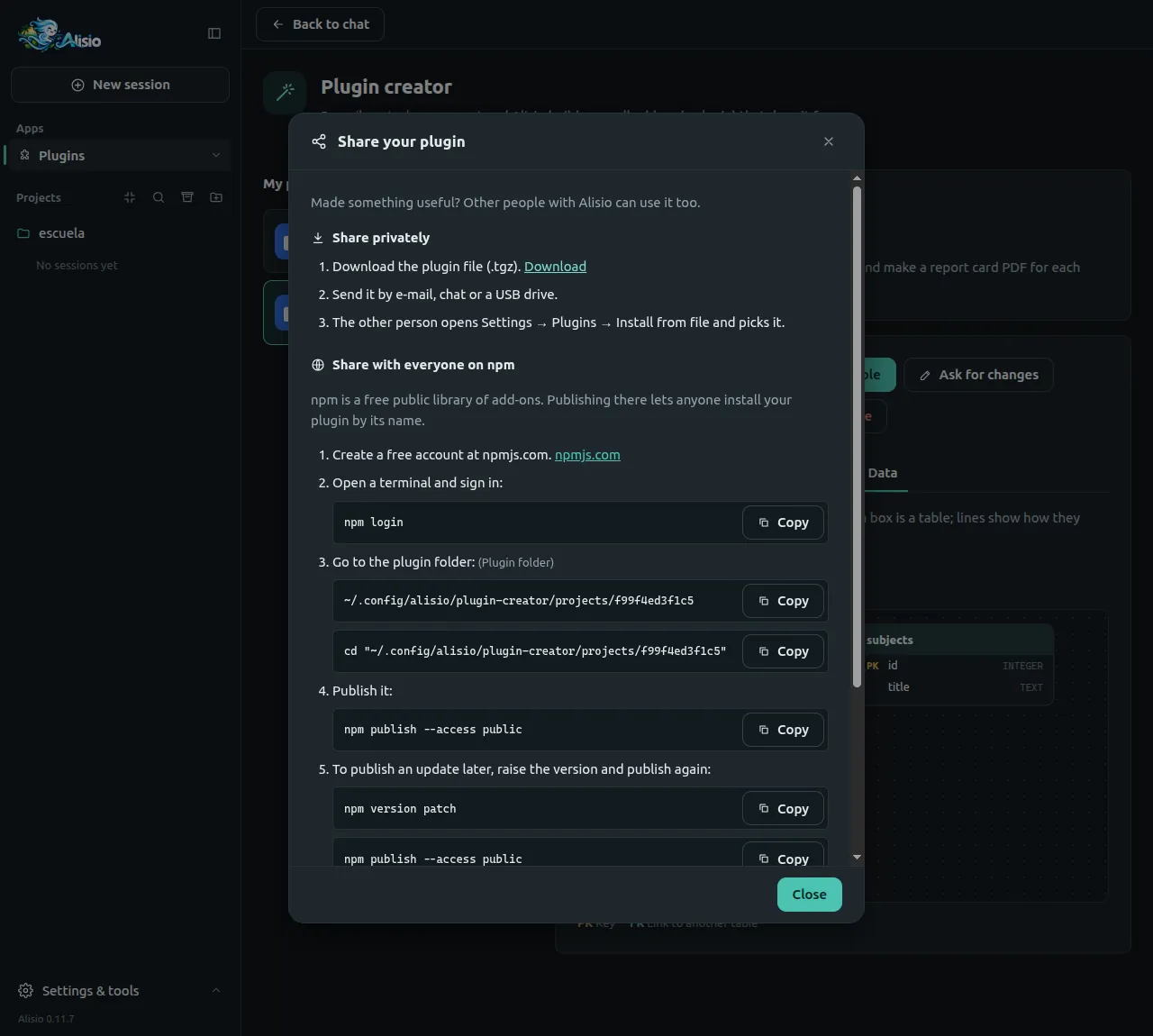
Share your plugin
Share opens a short tutorial.
- Privately. Download the file, send it by e-mail, chat or a USB drive, and the other person uses Install from file.
- With everyone on npm. npm is a free public library of add-ons. Create a free account at npmjs.com, then in a terminal run
npm login, go to the plugin folder (the dialog shows it) and runnpm publish --access public. To publish an update, runnpm version patchand publish again. See Publishing for how Alisio itself is published. - In the Alisio catalog. To make it appear in Settings → Plugins → Plugin catalog, send the npm link of your plugin to the Alisio developer; the dialog has the contact links.
Troubleshooting
When a build fails, the page lists what needs fixing in plain words, with Ask Alisio to fix it, which sends the list back to Alisio.
| Message | What it means |
|---|---|
| It was made for a different Alisio version | The plugin does not match the installed @alisio/sdk; ask Alisio to fix it, or update Alisio |
| It uses an Alisio function this version does not have | Same cause: ask for a fix |
| It still contains example code from the starting template | The plugin has not been written yet; ask for changes |
| It has no automatic checks yet | Ask Alisio to write the checks |
| It tries to use files from outside the plugin | A plugin may only import its own files and Node built-ins |
| Its icon or cover contains content that is not allowed | Icons and covers must be safe images (no scripts or outside links) |
| N of M checks failed | Press Ask Alisio to fix it or Try again |
| This plugin is busy with another task | Wait for the build, install or delete to finish |
Other cases: Alisio is running in read-only mode (started with --read-only) means plugins cannot be created, built, installed or deleted, but you can still look at them; That model is not configured anymore means you should pick another model.
Checks before installing
Every build checks the packaged plugin the way Alisio will use it: it unpacks it into a throwaway folder and starts it with Alisio's real plugin host (with throwaway settings and data folders), checks that every tool is accepted, calls each tool once with a minimal valid input, closes it and starts it again, and makes sure each tool has an automatic check. When the plugin has a screen in the Apps menu, the build also opens its page once (it must load, stay under 8 MiB and use only what the app frame allows: scripts with the nonce marker, no inline onclick= handlers, no files from outside), presses each of its actions once with a minimal valid input, and makes sure each action has an automatic check and that the screen goes away when the plugin closes. Install and Update stay disabled until the latest build passed every check for the files as they are now. When a check fails during a build, Alisio reads the problems and fixes them on its own; after a few failed attempts it stops and the page shows Try again.
| Message | What it means |
|---|---|
| Alisio could not start it | The plugin failed to start in Alisio; open Show the reason (for example a tool input with two types) and ask Alisio to fix it |
| One of its files is not valid JavaScript / It contains TypeScript files | Plugins ship plain JavaScript |
| It uses a file that would be left out of the package | A file it imports is not in the package |
| One of its tools failed when Alisio tried it | A tool threw an error instead of answering |
| It fails when Alisio closes it / It cannot be started a second time | Closing or restarting the plugin breaks |
| One of its tools has no automatic check | Each tool needs a check of its own |
| You asked for its own screen in the Apps menu, but it does not have one yet | The plan said the request needs a screen and the plugin adds none |
| Its screen in the Apps menu does not open / is too large to open | Its page failed, was empty or is larger than 8 MiB |
| Part of its screen would not work / Some buttons on its screen would do nothing | A script without the nonce marker, or an inline onclick= handler, which the app frame blocks |
| Its screen tries to load files from outside the plugin | The page loads a script or stylesheet from a file or address instead of including it |
| Its screen failed when Alisio tried one of its buttons / Something its screen does has no automatic check | An app action threw or did not answer with JSON data, or has no check of its own |
| Its screen stays open after Alisio closes the plugin | The app was still registered after the plugin closed |
| Alisio could not run its safety checks on this computer | Not the plugin: update or reinstall Alisio. Nothing is installed without the checks |
Installed but it could not start
If an installed plugin does not start, the page says Installed but it could not start, with the reason under Show the reason and Ask Alisio to fix it. Right after an install or update, Alisio checks that the plugin really started; if it did not, it undoes the install (an update puts the previous version back) and shows the same choice. Plugins installed before these checks are shown the same way.
Limitations
- Plugins are plain JavaScript with no dependencies and no build step; the creator cannot install other packages.
- A plugin is not a sandbox: it runs with your permissions once installed. Install only plugins you understand or trust.
- The approvals of a build show only while the creator page is open.
- The quality of the plugin depends on the model you choose and on how clear the request is.
- Projects live on this computer under
<config home>/plugin-creator/projects/; there is no sync.